
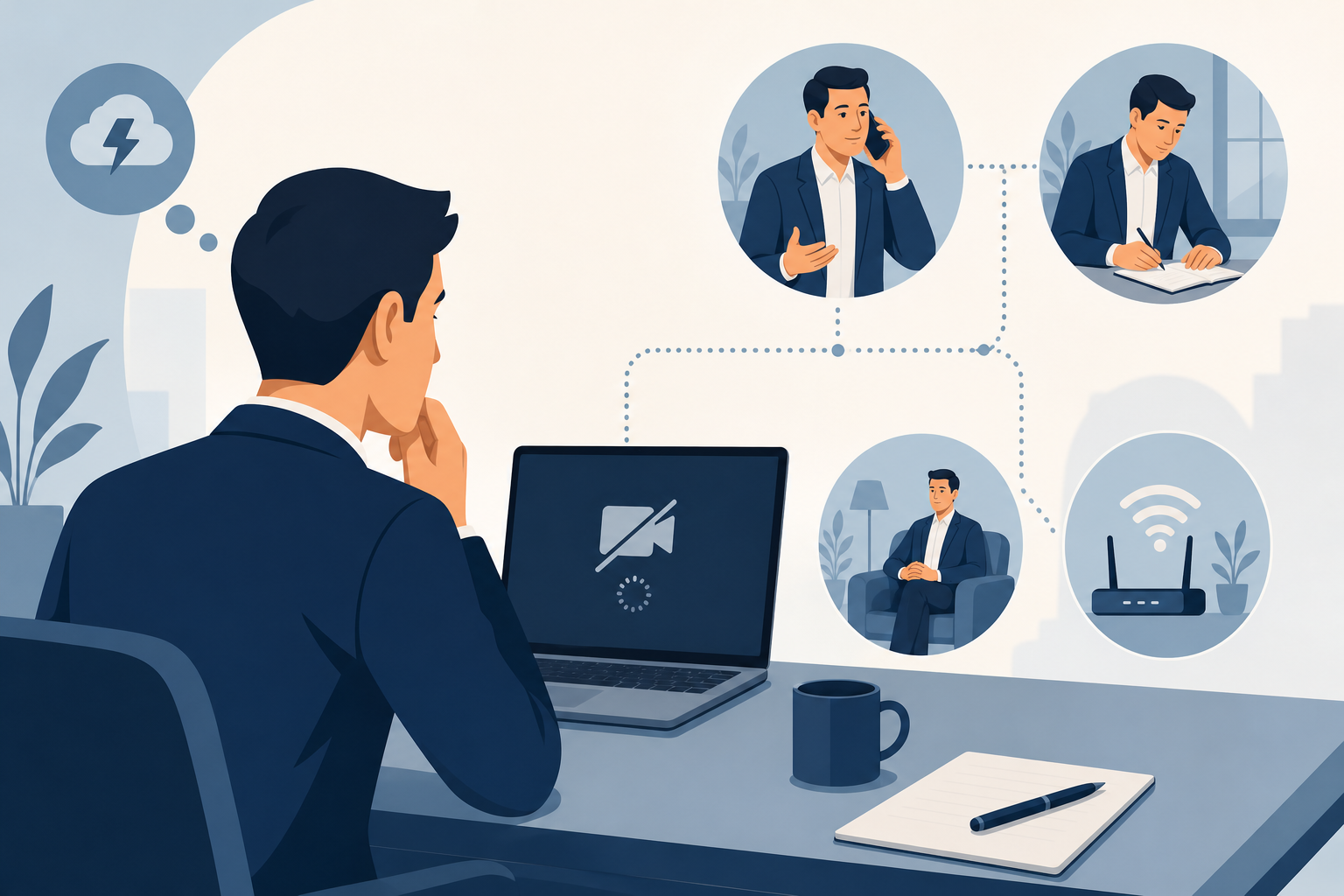
Your screen freezes halfway through a behavioral answer. The interviewer disappears. Or you hear your own voice repeating back with every sentence. When your tech fails mid-interview, you need a decision, not a troubleshooting marathon.
Your goal is to restore a usable conversation while protecting the time available to demonstrate your skills. That means knowing when to power through, when to call back, and what to say without overexplaining.
Use this decision tree and the recovery scripts below to keep a technical interruption from taking over your interview.
Your Decision Tree When Tech Fails Mid-Interview
Start with one question: Can you and the interviewer reliably hear each other? Video matters less than a clear, continuous conversation, unless the interview requires a visual task.
- Yes, audio works and only video is frozen: Confirm that you are audible. Continue with cameras off if the interviewer agrees and the format permits it.
- Partly, audio is choppy or echoing: Pause your answer. Try one targeted fix, then test the connection with a short question.
- No, you cannot hear each other: Use meeting chat if available. State that you will rejoin once, then leave and reopen the meeting.
- Rejoining fails or the problem returns immediately: Switch to an agreed phone or dial-in option. If you have no backup channel, contact the recruiter or interviewer by email.
- No workable connection remains: Ask to reschedule the unfinished portion rather than repeatedly restarting an unusable call.
As a practical default, spend roughly 30 to 60 seconds on one simple fix, not several minutes cycling through settings. This is a time-management guideline, not a platform requirement. Follow the interviewer's instructions if they have an established recovery process.
For a coding exercise, presentation, or proctored assessment, ask before switching devices or channels. Clear audio alone may not satisfy the interview requirements.
Frozen Video: When to Power Through
If your audio still works
A frozen camera does not automatically require a restart. Interrupt briefly to check whether the conversation is still usable:
“My video appears to have frozen. Can you still hear me clearly? If so, I'm happy to continue with my camera off.”
If the interviewer confirms, turn off your camera and continue. Avoid simultaneously answering a behavioral question and digging through video settings. That divides your attention and can make a strong example sound disorganized.
If their image freezes, do not assume they can still hear you. Pause and ask for confirmation. Otherwise, you may deliver the most important part of your answer to a disconnected call.
If screen sharing is essential
For a portfolio review or presentation, propose a fallback that preserves the task:
“The screen share is freezing. Would you prefer that I rejoin, or open the copy of the deck I sent and guide you by slide number?”
Only reference material you actually shared. If you need to send a file, use an approved channel and check that it contains no confidential information.
Dropped Interview Call: When to Rejoin or Call Back
After the first disconnect
Reopen the original meeting link once. If the app is unresponsive, close and reopen it rather than repeatedly clicking the same frozen window.
If meeting chat is still available, send this before leaving:
“My connection has become unstable. I'll leave and rejoin using the same link now.”
If you are already disconnected, use the contact channel provided in your invitation. A short email is enough:
Subject: Rejoining our interview
>
Hi [Name], my interview connection dropped. I'm rejoining through the original link now. If that does not work, I'm available at [phone number, including country code] and can continue by phone if the format allows.
This message communicates the problem, your next action, and a fallback. You do not need to diagnose your router or explain your internet provider's history.
If the connection drops again
A repeated failure is a reason to change the setup, not repeat the same recovery indefinitely. If available, try the meeting's phone-audio option while keeping the visual session open, or use a previously tested backup connection.
Before calling someone directly, check whether the invitation lists that number for interview contact. A recruiter’s number may not reach the interviewer, and an unexpected call can complicate their attempt to reconnect.
Say or send:
“The connection dropped again after I rejoined. Could we continue using the dial-in option or by phone? If the exercise requires video, I'm happy to arrange another time for the remaining portion.”
Do not assume the interviewer can extend the appointment. Let them decide whether to continue, shorten the remaining questions, or reschedule.
Interview Audio Echo: Fix the Cause Before Continuing
Echo makes behavioral answers difficult to follow. Unlike a frozen camera, it usually deserves a pause rather than an attempt to power through.
Common causes include sound feeding from speakers into a microphone or two nearby devices connected to meeting audio. Take these steps in order:
- Check for duplicate audio connections. If both your laptop and phone are in the meeting, disconnect audio on one device.
- Use headphones if available. They reduce the chance that speaker output will feed back into your microphone.
- Confirm the selected microphone and speaker. Your meeting app may be using a monitor, webcam, or other unintended device.
- Test with one short exchange. Ask, “Is that clearer now?” before restarting your answer.
Muting a microphone alone may not resolve a duplicate-device setup if a second speaker remains active. Keep only the audio path you intend to use.
Use neutral wording because the source may be on either side:
“I'm hearing an echo that's making the conversation difficult to follow. I'll check my audio connection first. Could we test one sentence before continuing?”
If it persists after a quick check, suggest reconnecting audio or using the agreed backup channel.
How to Resume a Behavioral Answer Without Rambling
Once the connection is stable, resist the urge to start your entire story again. First establish what the interviewer actually heard.
“Thanks for reconnecting. What was the last part of my answer you heard clearly?”
If they cannot identify the point, offer a brief reset using the STAR method: Situation, Task, Action, Result. Summarize the context in one sentence, then return to your actions and outcome.
For example, imagine you were answering a question about resolving a disagreement with a colleague. Your recovery could sound like this:
“To briefly reset: we disagreed about whether to release a feature before completing an additional check. I was responsible for coordinating the launch. I brought the engineer and product lead together, separated launch-critical issues from follow-up work, and documented the decision. We agreed on a narrower release that met the deadline without skipping the required checks.”
Use that as a structure, not a story to claim as your own. Your answer should reflect your actual experience and results.
If the interviewer heard the situation and task, skip straight to the missing action or result. You demonstrate composure by making the conversation easy to resume, not by pretending nothing happened.
The Exact Recovery Message to Send Afterward
A technical glitch does not always need its own follow-up email. If you reconnected quickly and completed the interview, a brief acknowledgment in your normal thank-you note is sufficient.
If the interruption cut the interview short or left next steps unclear, send this:
Subject: Follow-up on today's [Role] interview
>
Hi [Name],
>
Thank you for your flexibility when our connection dropped today. We completed [portion discussed], but the interruption prevented us from covering [remaining topic or exercise].
>
I'm available [two specific windows, with time zone] if you'd like to finish the remaining portion. I can use [tested backup option] if helpful.
>
I appreciated learning about [specific topic discussed] and remain interested in the role.
>
Best,
[Your name]
Delete any sentence that does not fit what happened. If you never established what remained, ask whether another conversation would be useful rather than asserting that one is necessary.
The composure signal comes from clarity: you describe the impact accurately, offer a realistic next step, and remain focused on the interview. Avoid repeated apologies, requests for reassurance, or claims that the problem proves you work well under pressure.
Prepare a Two-Minute Backup Plan Before Every Interview
You cannot prevent every outage, but you can reduce the decisions you must make during one.
- Save the meeting link and contact details outside the meeting app. Keep the recruiter’s email and any approved backup number accessible.
- Test the actual setup. Check your microphone, headphones, camera, and permissions in the platform you will use.
- Prepare one alternative. Charge your phone, confirm the dial-in details, or test a hotspot if your plan supports it.
- Keep your STAR notes available offline. Use brief prompts rather than scripts so you can recover your place naturally.
- Write down your fallback sentence. “I'll rejoin once, then contact you about an alternative.”
For a backup phone connection, know how to disconnect computer audio before joining phone audio. That small preparation can prevent the echo problem you are trying to escape.
Your Goal Is a Clear Conversation, Not a Perfect Connection
When tech fails mid-interview, use the simplest workable path: confirm audio, make one targeted fix, rejoin once, then change channels or arrange a continuation.
Before your next interview, save the recovery message and test your backup. You do not need a flawless technical setup to respond professionally. You need a calm acknowledgment, a practical next step, and a clear return to the question.